Printing Area
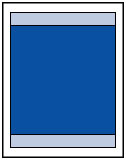
To maintain print quality, the printer leaves a margin around the edges of paper. The printable area is inside this margin.
Recommended printing area  : Canon recommends that you print within this area.
Printable area  : The area where it is possible to print.
 Note
Note
-
By selecting Borderless Printing option, you can make prints with no margins.
-
When performing Borderless Printing, slight cropping may occur at the edges since the printed image is enlarged to fill the whole page.
-
To specify the amount of image that extends off the paper, select Extension for borderless printing in Advanced paper settings.
-
For Borderless Printing, use the following paper:
-
Photo Paper Pro Platinum <PT-101>
-
Photo Paper Plus Glossy II <PP-201/PP-208/PP-301>
-
Photo Paper Pro Luster <LU-101>
-
Photo Paper Plus Semi-gloss <SG-201>
-
Matte Photo Paper <MP-101>*1
-
Photo Paper Pro Premium Matte <PM-101>*1
-
Premium Fine Art Smooth <FA-SM1>*1
-
Premium Fine Art Rough <FA-RG1>*1
-
Greeting Card
-
Card Stock
*1 Borderless Printing is disabled depending on print settings. To enable Borderless Printing, remove margin restrictions.
- Print Options dialog box (Windows)
- Advanced Paper Settings (macOS)
Performing Borderless Printing on any other type of paper may substantially reduce printing quality and/or result in printouts with altered color hues.
-
-
Borderless Printing is not available for 9"x13"(23x33cm) size paper or plain paper.
-
Depending on the type of paper, Borderless Printing may reduce the print quality at the top and bottom edges of the paper or cause these parts to become smudged.
